

Platform Tour
The screens you see on flow.knetai.com, from sign-in to Kue and every service, and what each control does.
This page walks through the platform as it looks today, left to right and top to bottom.
sign in → land in Kue → choose org and workspace → open a service as a tab → work with Kue beside it
1. Sign in
Go to flow.knetai.com. Sign in with your email and password, a Magic Link sent to your email, Google, or Sign in with KNetAI. New users choose Create a free account.
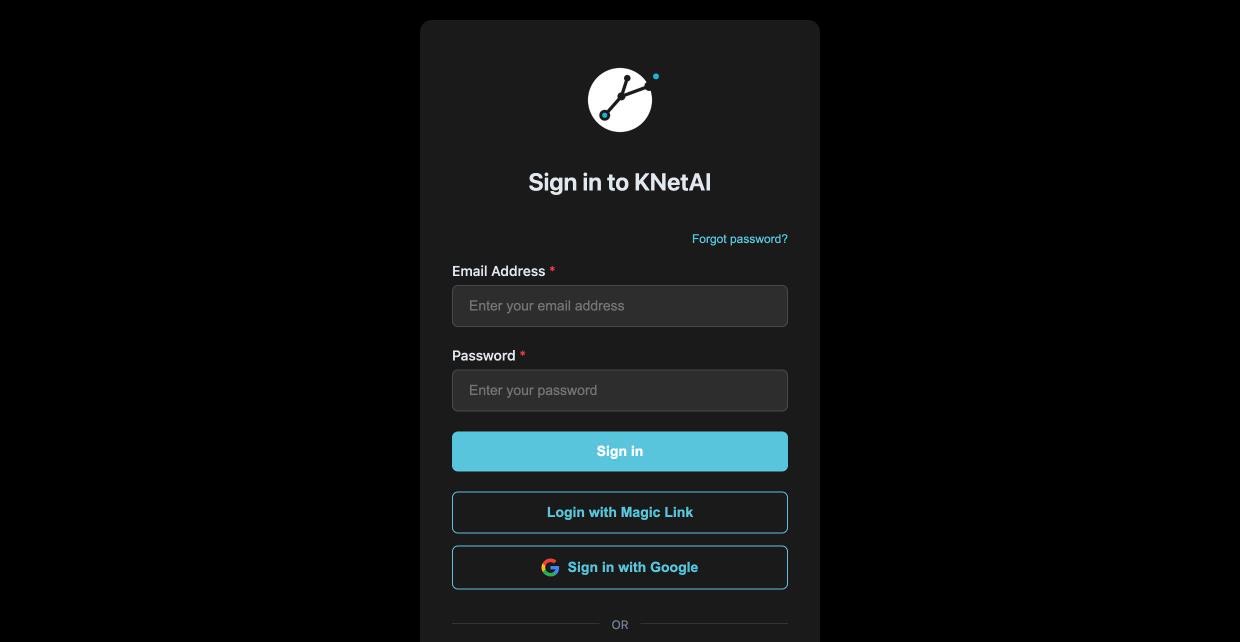
One sign-in covers every service. If you open any service while signed out, it sends you here and brings you back to the page you asked for.
2. Land in Kue
After sign-in you land in Kue, on your Home workspace. Kue is the home of Kue, your workspace's AI agent.
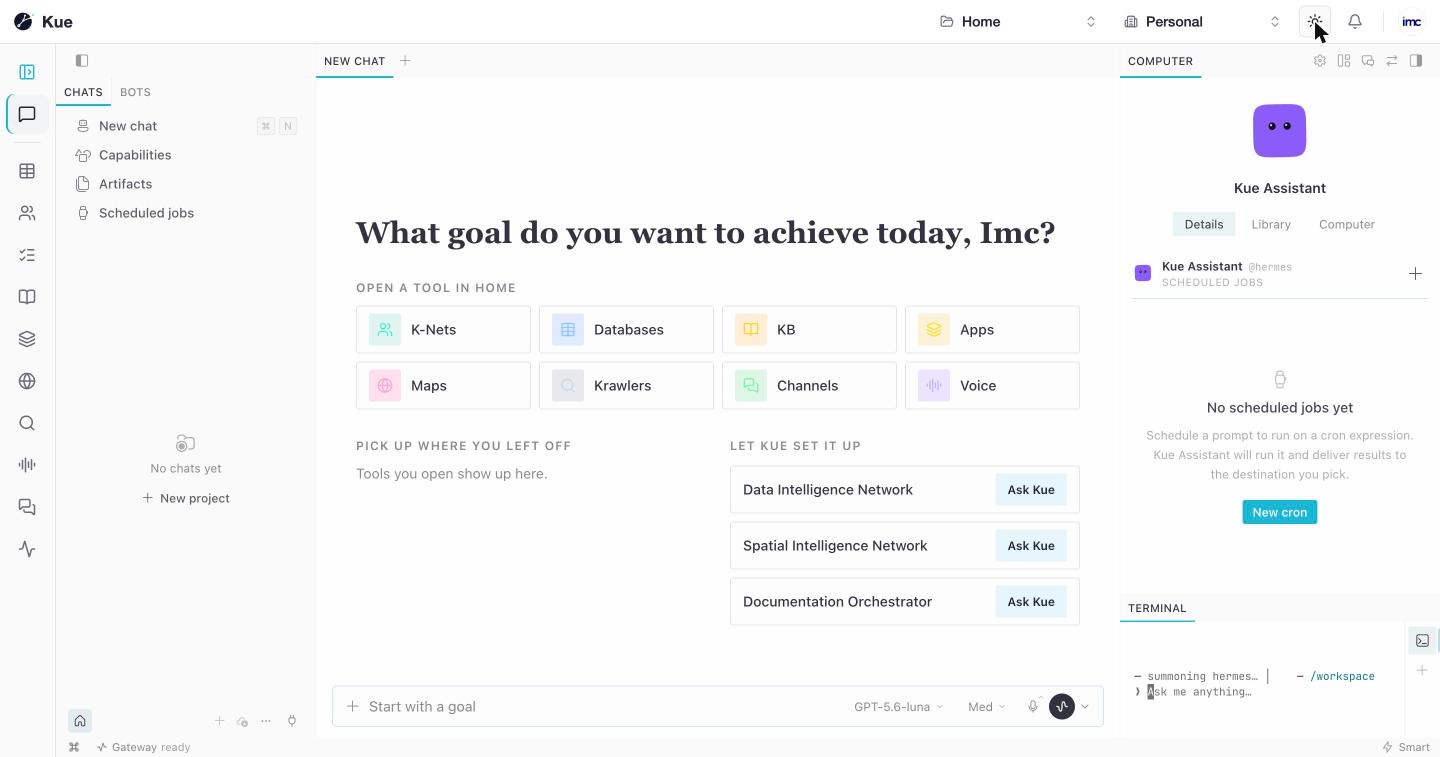
The first time you open a workspace, Kue shows Setting up Kue while the platform prepares it: the workspace's databases, apps and its own Kue. This runs once per workspace; later visits open at once.
3. The top bar
The same top bar runs across Kue and every service.
| Control | What it does |
|---|---|
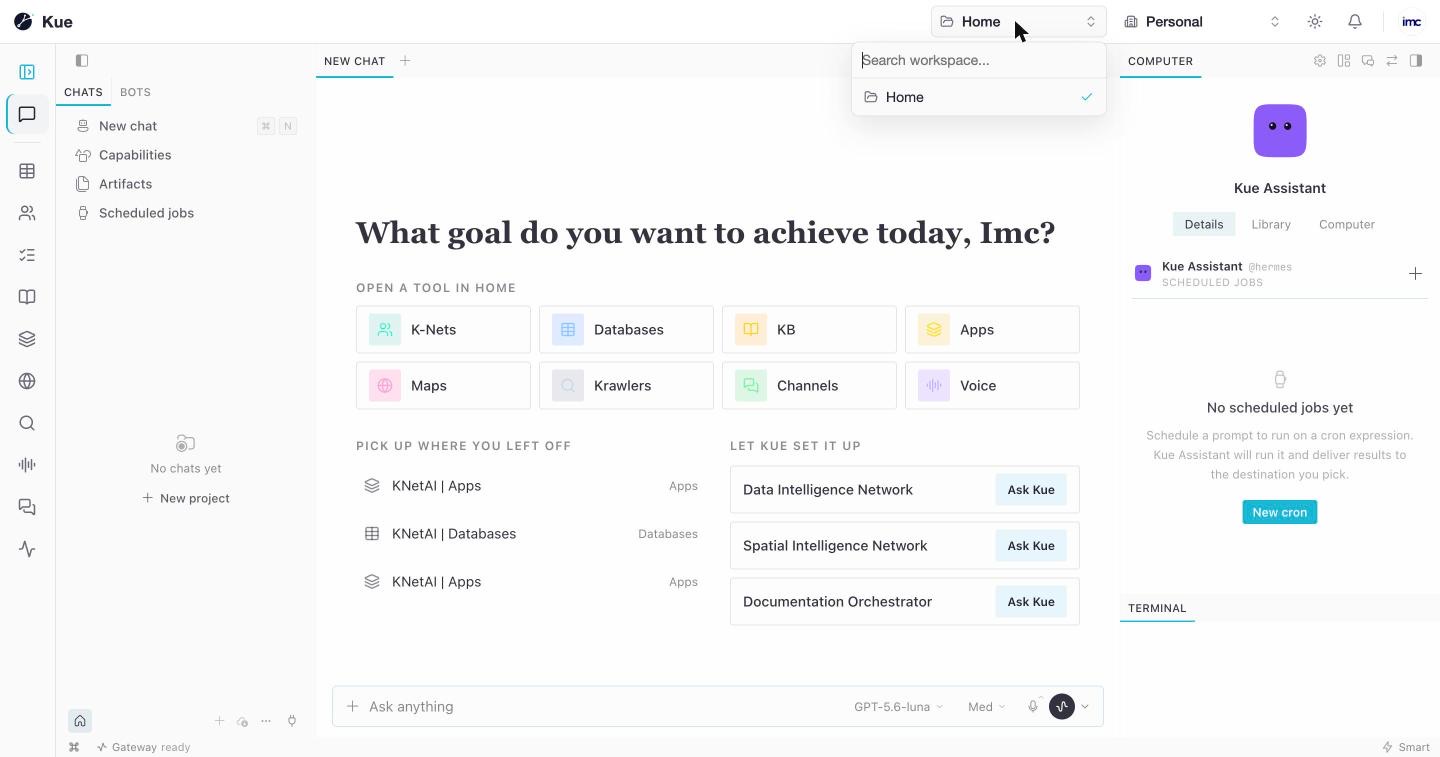
| Workspace menu (folder icon) | Search and switch the workspace. Everything you see belongs to it. |
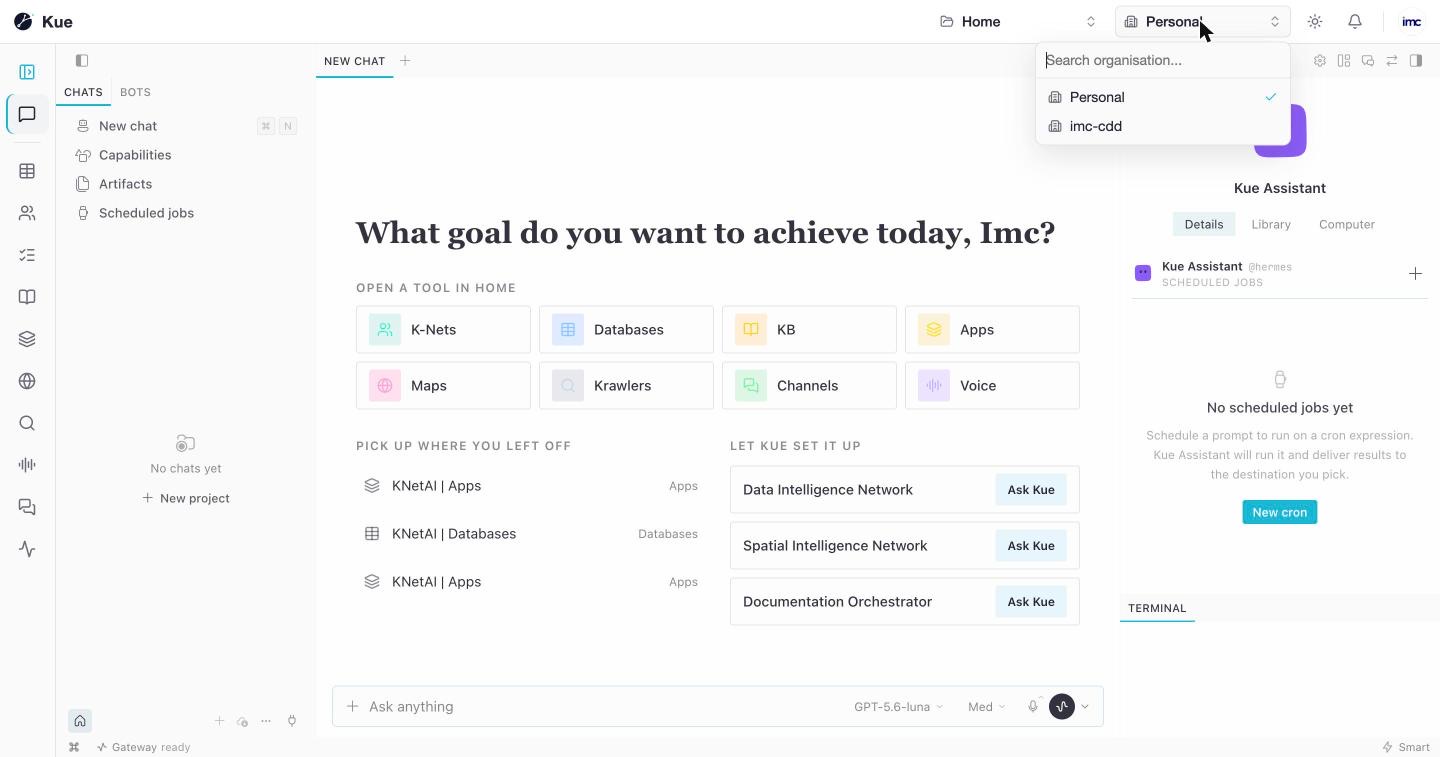
| Organisation menu (building icon) | Search and switch the organisation. Your Personal organisation is always there. |
| Sun / moon | Switch between light and dark theme. The choice follows you to every service. |
| Bell | Notifications |
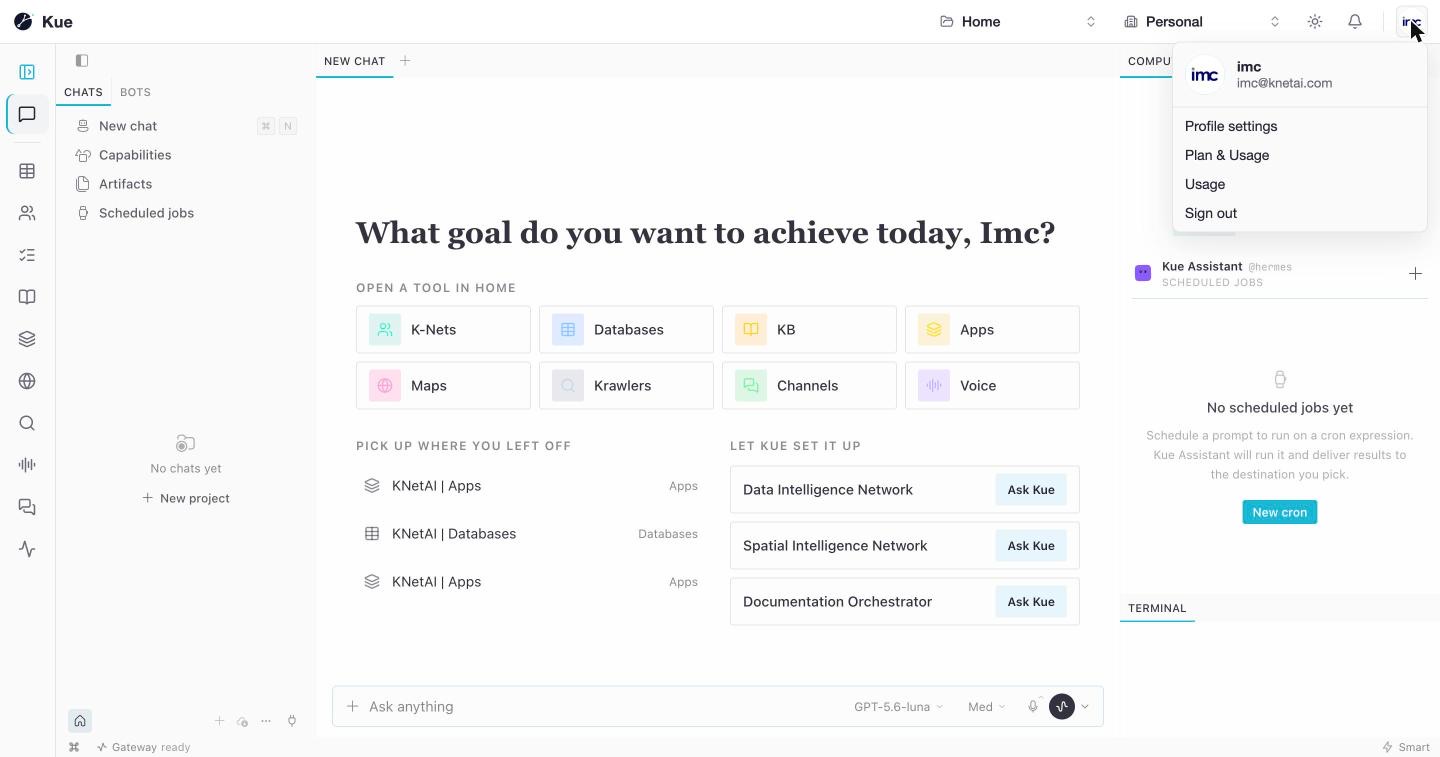
| Your avatar | The account menu |
The account menu shows your name and email, and links to Profile settings. Owners of an organisation also see Plan & Usage and Usage. Sign out signs you out of every service.
Workspaces you have no access to never appear in the menus. Each organisation also has a hidden system workspace that holds its secrets; it is never listed.
4. The service rail
On the left of Kue is a narrow rail with one icon per service: Databases, Flows (K-Nets), Instances, Knowledge Bases, Connectors, Maps, Crawlers, Voice, Channels and Traces. Point at an icon to see its name and one line about it. Click it to open the service as a tab.
5. Services as tabs
A service opens as a tab next to Kue, without its own top bar, because Kue already shows the organisation and workspace. Each tool keeps one tab; clicking its icon again brings that tab to the front.
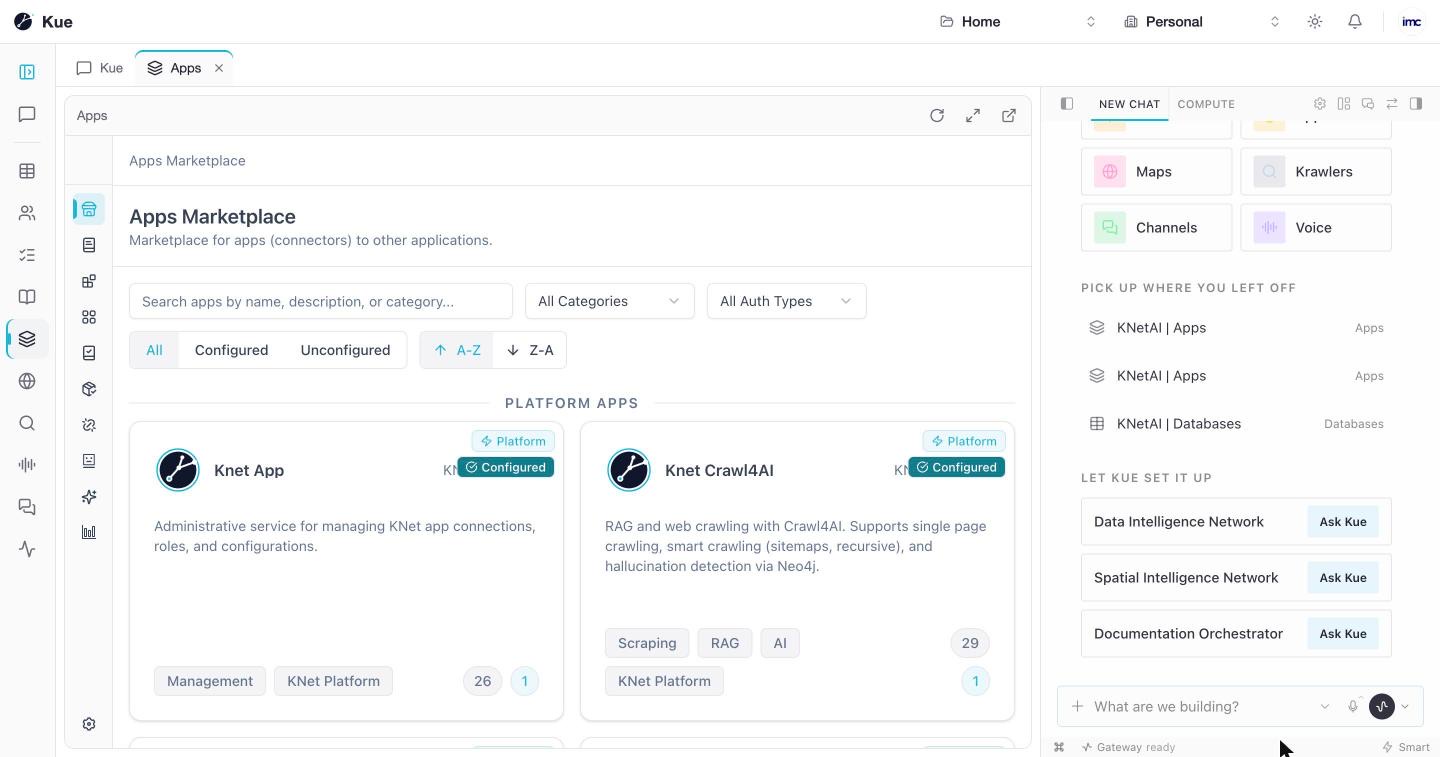
Each tab has a small tool bar:
- Reload the service.
- Full screen: the tab fills the window. Press
Escto leave it. - Open in a browser tab: the same page on its own, with the full service.
- Ask Kue shows or hides the Kue panel over a full-screen tab.
Inside a tab, the service shows its own pages as a narrow icon rail.
6. A service on its own
Every service also works on its own page, for example flow.knetai.com/connectors. On its own, a service shows:
- the KNet mark at the top left, which links home;
- the same top bar: workspace menu, organisation menu, theme, notifications and account menu;
- its sidebar of pages. The
>button at the top of the sidebar opens it to show page names;<folds it back to icons. The panel button in the top bar does the same, and so doesCtrl/Cmd + B.
The Services pages describe each service in turn.